Document guide · 5 minute read
How to Edit Existing Text in a PDF Without Retyping
To edit previous text in a PDF, open a text-based file in the editor, click the existing words and type your correction. Apply the changes and download the PDF. The replacement becomes real PDF text; you do not need to retype the whole page.
By ATS Clarity · Published · Updated
Start with the PDF you want to change
Open the free PDF editor and upload a PDF of 25 MB or less. Wait until the document and its toolbar appear. You can use the tool without an account.
For a small correction, editing the PDF can keep your work close to the existing page. For a substantial rewrite, use PDF-to-Word conversion or edit the original Word document if you have it.
Prefer to practise first? Open the editor and choose Try a sample PDF, or download our three-page practice PDF. It contains a fictional invoice and simple tables, so you can try an edit without supplying your personal document. The sample uses the same temporary server processing as your own uploads.
How to edit previous text in a PDF
- Upload the PDF. Its original page appears without reconstructing its text or tables. Unlock a password-protected document with its owner password before uploading it.
- Select Text and click existing words. Edit directly at their position on the page. Select the characters you want to replace and type, or remove the text to delete it. Press Enter to start a new line.
- Use the floating toolbar. Choose a font, toggle bold or italic, or change the size and color. The controls appear beside the active text box.
- Continue with another text box. Clicking another text keeps your previous edit staged. Use Undo or Redo to revise your work. You do not need to apply each box separately.
- Choose Apply changes, then Download. Review the prepared PDF, especially longer replacements and text that needs a matching fallback font. The edited PDF replaces the selected original text while keeping unrelated page objects in place.
Try it yourself · Fictional document
Edit existing PDF text: before and after
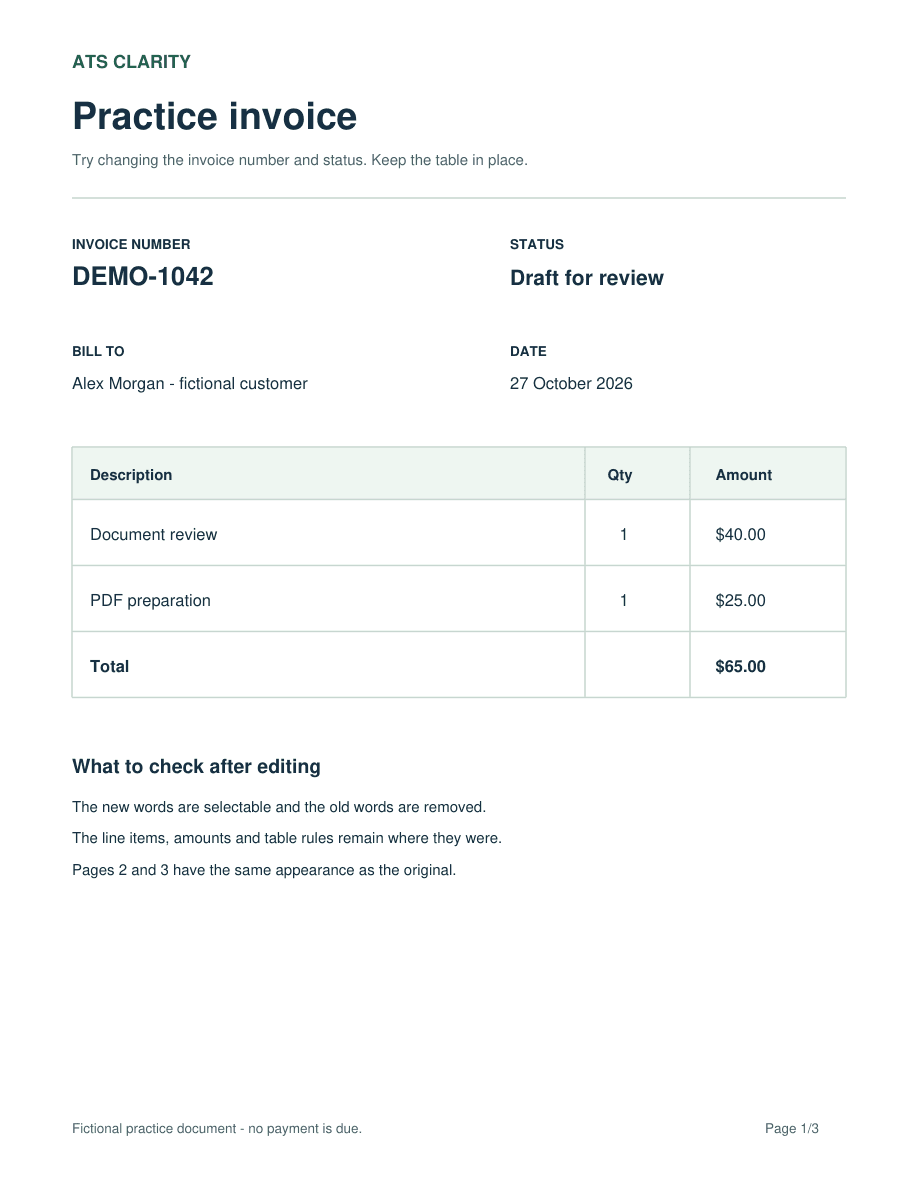
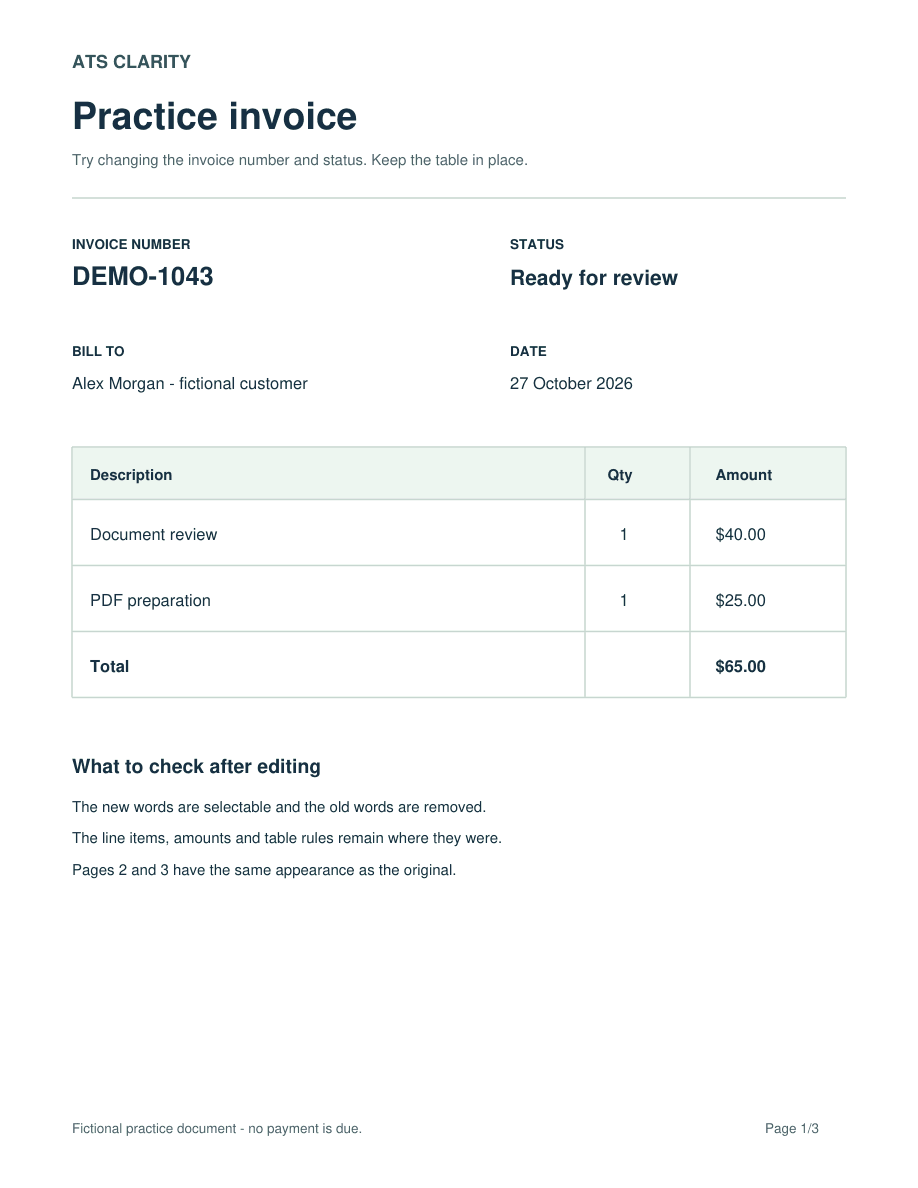
We changed an invoice number and status using the same editing engine as this tool. The table amounts stay intact, and the saved PDF contains the replacement words as selectable text.
| Original text | Edited text |
|---|---|
| DEMO-1042 | DEMO-1043 |
| Draft for review | Ready for review |
 Download the original PDF
 Download the edited PDF
Checked October 27, 2026: at 72 pixels per inch, page appearance outside the two edited value rows matched the original across all three pages. This is a check of this example; review your own document after editing, especially longer text or replacement fonts.
Choose Try a sample PDF in the editor to repeat the exercise, or follow the step-by-step PDF text editing guide. No account or payment card is required.
Add or move text on the page
With Text selected, click a blank part of the PDF to add a new text box and start typing. Use Enter for multiple lines. To reposition a text box, drag its move handle to the place you want it.
Text can extend beyond its original space when you change its words, size or position. Other content does not move out of its way automatically. Check nearby labels, table cells and page edges before applying the changes.
Check a small change first
Try changing one number in the practice PDF. Download the result and compare it with the original. Check the changed value, adjacent labels, table lines and other pages. A PDF downloaded without any edits retains the uploaded source bytes.
Why can I select words but not type?
Make sure Text is selected, then click the words you want to change. Type inside that text box on the PDF page. Use the floating toolbar to format the active box and choose Apply changes after finishing your edits.
Overlapping or rotated text is preserved without direct editing. If a text box is unavailable, try another text box or convert the current PDF to Word for a separate editing workflow.
If the page is a scan or photograph, it may contain an image instead of actual text. This workflow does not include optical character recognition (OCR). Use a text-based original or a separate OCR process before expecting scanned words to become editable.
Download the current version
Choose Apply changes to prepare the edited PDF, then Download to keep it. Choose Convert PDF to Word if you want a DOCX reconstructed from the current document instead. Word conversion is a separate export and complex tables, page breaks or fonts can need correction.
Your text edits stay staged in the current editor while you switch between text boxes. They are not saved across a refresh or opening another document. Apply and download your work first, and keep your original separately.
If Chrome stays on the loading screen
The page preview uses the uploaded PDF directly rather than an embedded PDF-viewer tab. You do not need to turn off Adobe Acrobat or other browser extensions to use this editor.
If the upload fails, check the file size and try the practice PDF. Download current edits before refreshing or opening another file.
Upload and session limits
This editor uses temporary server processing. Your editing session expires two hours after upload. Expired ATS Clarity session folders are cleaned up when later editing sessions are created, so deletion is not scheduled for the exact two-hour mark. Download your work before the session expires and read the privacy policy before uploading a sensitive document.
More help with the editor
For a full rewrite that needs paragraphs and table rows to flow together, convert the current PDF to Word and continue editing there. For a small correction or an added note, edit directly on the PDF page and check the result before sharing it.
Open the free PDF editor